AKTU ERP Admit Card: Download Hall Ticket 2026
Your AKTU semester exams are approaching, and without a printed admit card in your hand, you won’t get past the exam hall gate — no exceptions. The hall ticket is not available on the AKTU homepage or any public link. It lives inside your personal ERP dashboard at erp.aktu.ac.in, and it only generates after specific conditions are met. In this article you will get a complete process — from checking eligibility to printing your hall ticket — including every error students face and how to fix it.

Direct ERP Login: erp.aktu.ac.in
What Is the AKTU ERP Admit Card — and Why It’s Not Optional
The AKTU ERP admit card, also called the hall ticket, is an auto-generated document that appears in your student dashboard only after your exam form submission has been verified and your fee payment has been reconciled by the university system. It is not a static PDF that AKTU uploads publicly — which is why searching for a “direct download link” never works.
Every student appearing in B.Tech, MBA, MCA, B.Pharma, M.Tech, B.Arch, or BHMCT semester exams must carry a printed copy of this hall ticket to the examination center. Invigilators physically check and stamp it. No admit card means no entry — even if you have your college ID and roll number memorized.
Phase-Wise Admit Card Release — Read This Before Panicking
AKTU does not release admit cards for all students at once. There are two phases, and first-year students frequently think their account is broken when, in reality, their phase simply hasn’t been released yet.
Phase 1: 3rd and 4th Year Students (5th & 7th Semester)
Phase 1 admit cards are released first, typically a few weeks before Odd Semester exams beginning in January 2026. If you are in your 3rd or 4th year, your hall ticket should be available in the ERP dashboard during this window.
Phase 2: 1st and 2nd Year Students (1st & 3rd Semester)
Phase 2 cards are released later — usually in February, ahead of exams running from late February to March 2026. If you are a first-year student and your admit card is not showing, do not re-submit your exam form or make a duplicate payment. Wait for AKTU’s Phase 2 circular, or collect the printed copy from your college’s ERP coordinator, who has access through the Institute ERP login.
3 Things Your ERP Account Must Have Before the Admit Card Generates
The admit card will not appear in your dashboard if any of these three conditions are unmet. Check all three first — before troubleshooting anything else.
- 1. Exam Form Submitted and Fee Payment Reconciled Your Even or Odd Semester exam form must be filled and your fee payment must be successfully reconciled. AKTU uses a batch reconciliation system that can take up to 48 hours to sync your bank’s gateway with the university’s records. If your payment was deducted but the status still shows “Failed,” do not pay again. Wait 48 hours and check the Payment History tab. A second payment creates a technical loop that delays form verification further.
- 2. ABC ID (APAAR) Linked and Verified From session 2025-26, AKTU requires every student to link their 12-digit ABC ID (also known as APAAR ID) to their ERP profile. If the status in your dashboard shows “Pending” instead of “Verified,” your admit card may either not generate or come out with a “Withheld” flag. Log into your ERP, go to Student Profile → ABC ID Entry, and complete the linking. If your Aadhaar name doesn’t match your AKTU records, the system will reject the sync — you’ll need to fix the mismatch before the card generates. You can read the full ABC ID linking process on the AKTU ERP registration guide.
- 3. Registered Mobile Number Active for OTP AKTU’s ERP now uses Two-Factor Authentication (2FA) for every login. If your registered mobile number is switched off, ported, or inactive, you cannot receive the OTP and cannot access your dashboard. You cannot change this number from the student panel — submit a request to your college’s ERP coordinator. They update it via the University Intranet.
How to Download Your AKTU ERP Admit Card — Step by Step
Main Method: Student ERP Dashboard
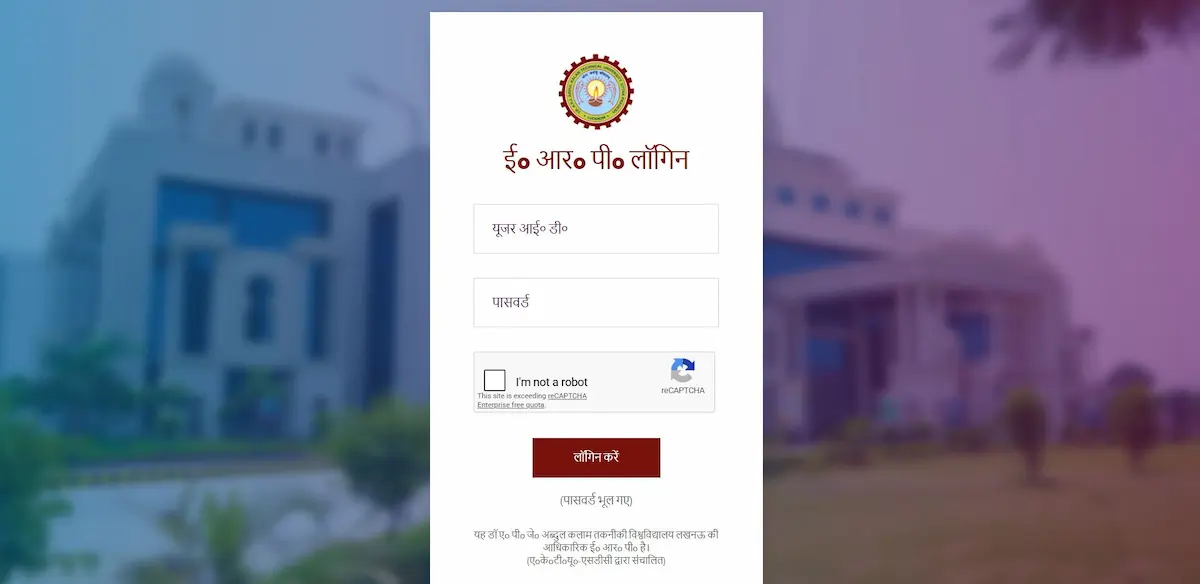
- Step 1. Open erp.aktu.ac.in in Google Chrome (version 120 or above) or Mozilla Firefox on a laptop or desktop. The ERP was built for desktop browsers. On a phone, the login button sometimes disappears — if you must use a mobile device, rotate it to landscape mode and enable “Desktop Site” in your browser settings.
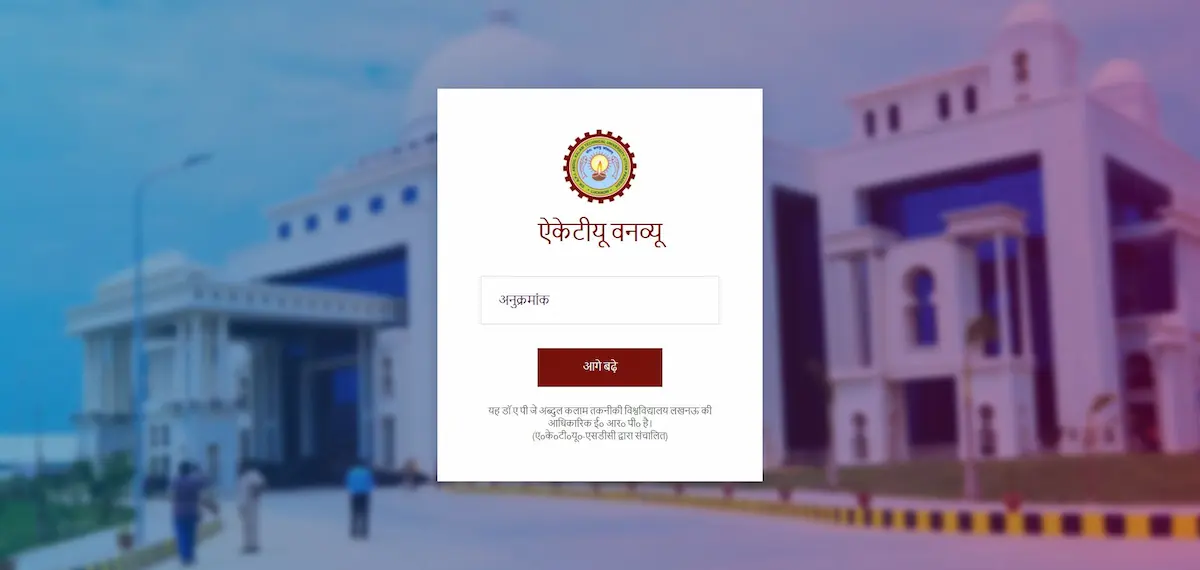
- Step 2. Enter your 11-digit Enrollment Number as the User ID. Do not enter your Roll Number here — that is only for AKTU One View results. If you are unsure of your Enrollment Number, the AKTU ERP User ID guide explains exactly where to find it.
- Step 3. Enter your password. For first-time users, the default password format is: last 4 digits of your registered mobile number + your date of birth in DDMMYYYY format. Example: if your mobile ends in 9876 and your DOB is 05 March 2004, the password is 9876050320004.
- Step 4. Complete 2FA. A 6-digit OTP will be sent to your registered mobile. If the SMS is delayed due to network congestion, AKTU also sends the OTP to your registered email simultaneously — check both.
- Step 5. After logging in, go to Examination → Admit Card / Hall Ticket Download from the dashboard menu.
- Step 6. Your admit card will load on screen. Verify every detail (covered in the next section), then download the PDF and print it on A4 paper. Save a digital backup in your phone or Google Drive.
For Newly Admitted 1st Year Students (Freshers)
Freshers whose data hasn’t yet synced to the central ERP may find their admit card uploaded inside the Institute/College ERP login rather than the student dashboard. In this case, visit your college registrar or ERP coordinator directly. They can print it from the institutional portal. This is normal and not a system error.
What’s Printed on the AKTU Hall Ticket — Verify These Details Immediately
The moment you download your admit card, cross-check every field. Errors discovered on exam day cannot be corrected on the spot.
- Student Name — must match college enrollment records exactly
- University Roll Number and Enrollment Number
- Course Name, Year, and Semester
- Subject Names with Paper Codes — confirm all your registered subjects appear
- Exam Dates and Time Slots — morning or afternoon session for each paper
- Exam Center Name, Center Code, and Full Address
- Photograph and Signature
- Reporting Time — usually 30 minutes before the exam start; gates close 15 minutes prior
If you spot a wrong subject code, a missing paper, a misspelled name, or an incorrect exam center, report it to your College Registrar immediately. You can also email the Controller of Examinations at [email protected] with your roll number and a screenshot. Errors cannot be corrected after the exam date has passed.
Admit Card Not Showing? Fix Every Error Here
This is the most-searched problem around AKTU admit cards — and most of the time, it has a simple cause.
| Problem | Likely Cause | Fix |
|---|---|---|
| Admit card option missing from dashboard | Exam form not submitted or fee not reconciled | Check Payment History; wait 48 hours after fee deduction before acting |
| Page loads blank or keeps buffering | Server congestion during peak hours | Access between 6–9 AM or after 10 PM; use incognito mode |
| Session expires immediately after login | Browser cache or cookie conflict | Switch to Chrome/Firefox incognito window |
| Wrong exam center on admit card | Exam Center Lock window was missed in ERP | Contact college registrar for center correction before exam date |
| Name or details are incorrect | Mismatch in college enrollment records | Report to College Registrar with 10th Marksheet as proof immediately |
| Admit card shows “Withheld” | ABC ID not linked, pending fee, or attendance below 75% | Check ERP dashboard notifications for the specific reason |
| 1st year admit card not showing | Phase 2 not yet released by AKTU | Wait for Phase 2 circular; collect from college ERP coordinator |
What to Carry to the Exam Hall on the Day
The printed admit card is necessary but not sufficient on its own.
Carry a valid photo ID alongside it — your college ID card, Aadhaar card, or driving license all work. Bring only a blue or black ballpoint pen; gel pens are not permitted for OMR-based papers. Mobile phones, smartwatches, Bluetooth earphones, and programmable calculators are strictly prohibited inside the examination hall.
Arrive at the center at least 30 minutes before your exam start time. Gates typically close 15 minutes before the exam begins. There is no provision for late entry under any circumstances.
After your semester results are declared, you can check your SGPA, subject-wise marks, and download your provisional marksheet through AKTU One View on the result page.
Frequently Asked Questions
Can I download the AKTU admit card without a password?
No. The admit card is inside your Student ERP dashboard, which requires your Enrollment Number and password plus OTP verification. Unlike AKTU One View, the admit card section is not publicly accessible without login credentials.
What if my admit card doesn’t generate even after I submitted the exam form?
Wait 48 hours after fee payment for bank reconciliation to complete. If it still doesn’t appear after that window, email [email protected] with your Roll Number, Transaction ID, and a screenshot confirming the payment deduction. Do not make a second payment until you receive a response.
Is a printed admit card required, or is the digital version on a phone enough?
A printed hard copy is strongly recommended. Invigilators physically check, verify, and stamp the hall ticket during exams. Most centers do not accept digital versions displayed on a phone screen.
My AKTU ERP admit card shows a subject I didn’t register for — what should I do?
Report to your College Registrar the same day you notice it. Carry your exam form confirmation and fee receipt as proof of the subjects you actually registered for. The registrar coordinates with AKTU’s Examination Cell to issue a corrected admit card before the exam date.